
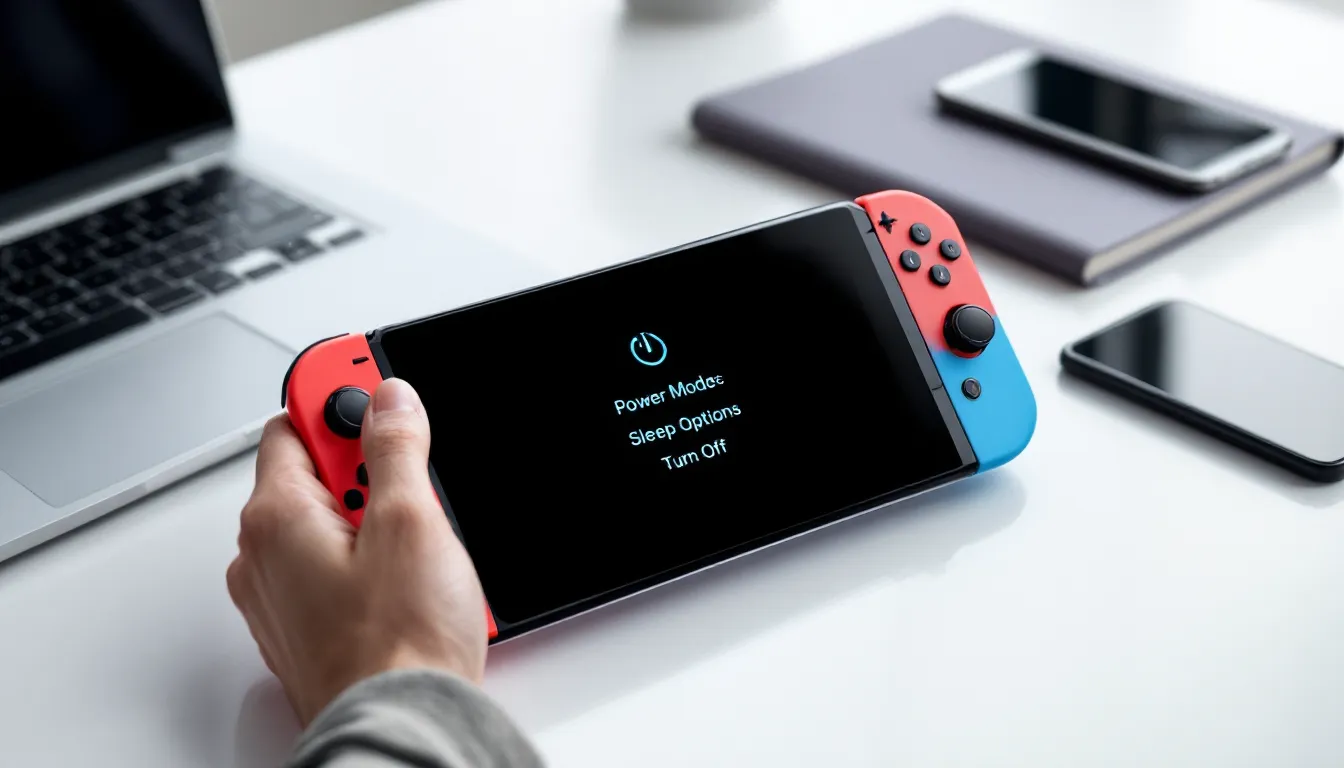
Most Switch owners tap the power button and assume their console is off, but here’s the thing, it’s probably just sleeping. There’s a real difference between sleep mode and a full shutdown, and knowing when to use each can save battery life, prevent software glitches, and keep your system running smoothly. Whether you’re packing your Switch for a trip, troubleshooting a frozen screen, or just want to give your console a proper rest, understanding how to actually turn it off matters more than you’d think. This guide covers every method across the standard Switch, OLED, and Lite models, plus troubleshooting for when things don’t go as planned.
Table of Contents
ToggleKey Takeaways
- Sleep mode is the default for daily use and drains only 2-3% battery per day, while a full shutdown is necessary for long storage periods, troubleshooting, or system maintenance.
- To turn off your Nintendo Switch, hold the power button for three seconds to access Power Options, then select Turn Off—this is the cleanest method across standard, OLED, and Lite models.
- A forced shutdown (holding the power button for 12-15 seconds) works when your Switch is frozen or unresponsive, but always wait 10 seconds before restarting to avoid boot issues.
- Airplane mode can extend gameplay by 10-15% during wireless-heavy games without fully powering down, making it ideal for battery conservation during shorter breaks.
- Close games manually before sleep mode to reduce RAM usage and battery drain, and keep your battery between 20-80% charged for optimal long-term health.
- Configure your auto-sleep settings in System Settings to match your habits—shorter timers for handheld play save more battery, while longer timers prevent interruptions during passive gameplay.
Understanding the Difference Between Sleep Mode and Powering Off
What Is Sleep Mode and When Should You Use It?
Sleep mode is the Switch’s default low-power state. When the console enters sleep, the screen goes dark, wireless connections pause, and battery drain drops to a crawl, typically around 2-3% per day when fully charged. Your game stays exactly where you left it, suspended in memory, ready to resume in under two seconds.
This is the mode Nintendo designed for everyday use. Toss your Switch in a bag between sessions, dock it overnight, or pause mid-battle, sleep mode handles it all. The console can still download updates, charge controllers, and maintain your play session for days without issue.
For most gamers, sleep mode is the go-to. It’s fast, convenient, and doesn’t interrupt game progress. If you’re playing daily or even every few days, there’s no real reason to power down completely.
When to Fully Power Down Your Nintendo Switch
Full shutdown is different. The system closes all software, clears active memory, and stops all background processes. Battery drain in this state is nearly zero, you can leave a powered-off Switch untouched for weeks and still have charge left.
You’ll want a full power-off in a few scenarios. If you’re storing the console for an extended period (like a month or more), powering off prevents unnecessary battery cycling. When troubleshooting software bugs, freezes, or performance hitches, a factory reset process or complete shutdown can clear corrupted temp files that sleep mode won’t touch.
Traveling by air? Some airlines and gaming communities recommend powering off rather than sleep mode to avoid potential wireless interference, though the Switch’s airplane mode usually handles this fine. And if you’re planning system maintenance, transferring data, or swapping SD cards, a full shutdown is the safer move.
In short: sleep mode for daily use, power off for long breaks or troubleshooting.
How to Put Your Nintendo Switch in Sleep Mode
Using the Power Button for Quick Sleep Mode
The fastest way to sleep your Switch is a quick tap of the power button. That’s it. One short press, not a hold, just a tap, and the screen goes dark immediately. This works whether you’re in a game, on the home screen navigation, or anywhere in the system menu.
The power button sits at the top-left edge of the console (or top-right if you’re holding it upside down, but let’s not). It’s small, slightly recessed, and easy to miss if you’re new to the hardware, but once you know where it is, muscle memory takes over.
Games don’t close when you tap into sleep mode. Your progress stays frozen right where you paused. Multiplayer sessions might disconnect depending on the game, but single-player content waits patiently for your return.
Sleep Mode via the Home Button Menu
If you prefer a menu-driven approach, press the Home button (the circular one with the house icon below the right Joy-Con stick). This pulls up the quick menu overlay without closing your game.
From here, navigate to the Sleep Mode icon at the bottom of the menu, it looks like a crescent moon. Select it, and the console powers down to sleep just like the button tap method.
This route takes an extra second or two, but it’s useful if you want to check notifications, adjust volume, or toggle airplane mode before sleeping the system. Some players also find it more deliberate, reducing the chance of accidental presses during intense gaming sessions.
How to Fully Turn Off Your Nintendo Switch
Method 1: Using the Power Button Menu
For a proper shutdown, press and hold the power button for about three seconds. Don’t just tap it, hold until the Power Options menu appears on-screen. You’ll see three choices: Sleep Mode, Power Options, and Restart.
Select Power Options, then choose Turn Off. The screen will fade to black, and the system will shut down completely within a few seconds. No suspended games, no background activity, just off.
This is the cleanest shutdown method according to tech hardware guides, and it’s what Nintendo recommends for routine power-downs. It ensures all software closes gracefully and system logs are saved properly.
One note: if you’re in the middle of saving or downloading something, the system will warn you before shutting down. Don’t ignore those prompts, forcing a shutdown during a save can corrupt data.
Method 2: Holding the Power Button
If the menu method doesn’t work or your Switch is unresponsive, you can force a shutdown by holding the power button for about 12-15 seconds. The screen will go black, and the system will power off even if it’s frozen.
This is essentially a hard shutdown. It bypasses all software processes and cuts power directly. Use it only when the console won’t respond to normal input, freezes, crashes, or when the screen is stuck.
After a forced shutdown, wait at least 10 seconds before powering back on. This gives capacitors time to discharge and helps avoid potential boot issues. Nintendo’s official support docs acknowledge this method but caution against using it regularly, since it skips the normal shutdown routine.
How to Turn Off Your Switch While Docked
Docked mode doesn’t change the shutdown process, it just hides the power button behind the console. You’ve got two options here.
Option 1: Reach around to the top-left edge of the docked Switch and press the power button as usual. Hold for three seconds, select Power Options, then Turn Off. The dock itself doesn’t have a power button, so you’re still using the console’s hardware.
Option 2: Use a controller. Press the Home button, navigate to System Settings (the gear icon at the bottom of the home screen), scroll down to Power Options, and select Turn Off. This works with Joy-Cons or Pro Controllers and saves you from awkwardly reaching behind your TV setup.
Some players worry about leaving the Switch docked while powered off. Don’t. The dock continues to supply power for charging even when the console is shut down, and Nintendo designed the hardware to handle this safely. If you’re concerned about long-term battery health during extended storage, unplug the dock entirely, but for normal use, docked shutdowns are fine.
One quirk: if your TV supports HDMI-CEC (the feature that auto-switches inputs when devices power on), turning off your Switch might also turn off your TV, depending on your settings. You can disable this in the Switch’s TV Settings menu if it’s annoying.
How to Turn Off Nintendo Switch Lite
The Switch Lite uses the exact same shutdown methods as the standard model, just without the docking complications. The power button sits in the same top-left position, small, round, and slightly recessed.
Sleep mode: Quick tap of the power button. Done.
Full shutdown: Hold the power button for three seconds, select Power Options, then Turn Off. Or hold for 12-15 seconds to force a shutdown if the system’s frozen.
The Lite’s smaller form factor and integrated controls don’t change the power logic at all. One advantage: since it’s handheld-only, you never have to fumble with dock placement or HDMI-CEC quirks. The power button is always accessible.
Battery life on the Lite is slightly better than the original Switch (though still behind the revised 2019 model and OLED), so sleep mode drains even less over time, usually around 1-2% per day. For younger players or those choosing age-appropriate consoles, the Lite’s simpler, non-detachable design often makes power management more straightforward.
How to Turn Off Nintendo Switch OLED Model
The OLED model shares the same power button placement and shutdown methods as the original Switch. Even though the upgraded screen, improved kickstand, and larger dock, Nintendo kept the power controls identical.
Everything from the standard model applies here:
- Sleep mode: One tap of the power button or Home > Sleep Mode icon.
- Full shutdown: Hold power for three seconds, select Power Options > Turn Off.
- Forced shutdown: Hold power for 12-15 seconds if frozen.
The OLED’s bigger, brighter 7-inch display doesn’t change power consumption drastically in sleep mode, you’ll still see around 2-3% battery drain per day. The improved battery over the original 2017 model means you can leave it in sleep mode for longer stretches without worry.
One OLED-specific note: if you’re using the new dock with a wired LAN port, powering off the console while docked won’t affect your router or network. The dock’s Ethernet connection only activates when the Switch is on or in sleep mode, so there’s no phantom power draw when fully shut down.
Whether you’re playing epic mech battles or navigating system settings, the OLED handles power management exactly like its predecessors.
Troubleshooting Common Power Issues
What to Do If Your Switch Won’t Turn Off
If the power button does nothing or the Power Options menu won’t appear, start with the basics. Make sure you’re holding the button long enough, three full seconds for the menu, not just a quick tap. If you’re in a game, exit to the home screen first: some games can interfere with the power menu if they’re processing heavy loads.
Still nothing? Check the battery. If the charge is critically low (below 1-2%), the system might not have enough juice to display the shutdown menu properly. Plug in the AC adapter, wait five minutes, then try again.
Software glitches can also block shutdown commands. According to gaming tech troubleshooting resources, this sometimes happens after a system update or when background downloads freeze. In these cases, forcing a restart (covered below) usually clears the issue.
How to Force Restart a Frozen Nintendo Switch
When your Switch locks up completely, frozen screen, unresponsive buttons, the whole deal, hold the power button for 12-15 seconds. Don’t let go early. The screen will eventually go black, and the system will hard-reset.
Wait at least 10 seconds after the screen goes dark before pressing the power button again to turn it back on. This brief pause ensures all internal processes fully stop before reboot.
Force restarts won’t delete your data or games, but they can interrupt active saves or downloads. If you were mid-save when the freeze happened, you might lose a few minutes of progress. Cloud saves (for Nintendo Switch Online members) can restore most lost data, but it’s not instant.
If you’re forcing restarts more than once a week, something’s wrong. Persistent freezes usually point to corrupted software, a failing SD card, or (rarely) hardware issues. Check your SD card first, cheap or counterfeit cards are notorious for causing instability. Try removing it and running the system on internal storage for a while.
Screen Stays Black After Powering Off
Sometimes the screen won’t wake after a shutdown or sleep. First, make sure the battery isn’t dead. Plug in the official AC adapter (third-party chargers can cause issues) and let it sit for 15-20 minutes. A completely drained battery can take time to accept charge before the system responds.
If the charging indicator doesn’t light up or the screen stays black even after charging, try a force restart: hold the power button for 12-15 seconds, wait, then press it again to power on.
Still black? Check the brightness settings, sounds silly, but if brightness somehow got set to zero, the screen appears off even when it’s technically on. Press the Home button, listen for the click sound, then press Volume Up several times to rule this out.
For docked players, make sure the HDMI cable is seated properly and the TV input is correct. The Switch won’t display on the tablet screen when docked, so a loose cable makes it seem like the system’s dead.
If none of these work, you’re looking at potential hardware failure. Nintendo’s support line or a local repair shop is your next move. Don’t attempt DIY screen repairs, the OLED and LCD panels are delicate and expensive to replace if you crack them further.
Best Practices for Nintendo Switch Power Management
Battery Life Optimization Tips
Sleep mode is great, but it still drains battery slowly. If you’re trying to maximize charge between sessions, close games manually before sleeping. Press the Home button, highlight the game icon, press X, then select Close. This frees up RAM and slightly reduces power draw.
Keep your battery between 20% and 80% when possible. Lithium-ion batteries (like the Switch’s) last longest when you avoid the extremes. Charging to 100% and draining to 0% repeatedly shortens overall lifespan over months and years.
For long-term storage (more than a month), power off completely and leave the battery at around 50-60% charge. Store in a cool, dry place, heat is the enemy of battery longevity.
When to Use Airplane Mode Instead of Powering Off
If you’re just trying to save battery during short breaks, airplane mode can be smarter than a full shutdown. It disables Wi-Fi, Bluetooth, and NFC, cutting background activity without closing your game.
To enable it: press Home, go to System Settings > Airplane Mode, and toggle it on. Or use the quick settings (hold Home briefly) and select the airplane icon.
This is clutch for flights, obviously, but also useful when you’re playing offline single-player games and don’t need wireless features. Battery drain drops noticeably, sometimes matching or beating sleep mode’s efficiency, while keeping your session active.
According to Nintendo coverage experts, airplane mode can extend play time by 10-15% in wireless-heavy games like Splatoon or Animal Crossing, where constant online checks normally chew through battery.
Configuring Auto-Sleep Settings
The Switch auto-sleeps after a set period of inactivity, and you can tweak this to fit your habits. Go to System Settings > Sleep Mode, and you’ll see separate timers for handheld and docked play.
Default is 10 minutes for handheld, 1 hour for docked. If you frequently step away mid-session, shorten the handheld timer to 3 or 5 minutes to save battery. If you’re watching cutscenes or streaming gameplay, lengthen the docked timer so the screen doesn’t blank during passive moments.
One gotcha: auto-sleep won’t trigger during active gameplay or video playback. It only kicks in when the system detects zero controller input. So if you leave a game paused on-screen, the timer starts, but if you’re AFK in an online lobby where your character idles, the game might still register input from other players, preventing auto-sleep.
Conclusion
Knowing the difference between sleep mode and a full shutdown, and when to use each, keeps your Switch running smoothly and extends its lifespan. Sleep mode handles daily gaming perfectly, but powering off completely is the move for long breaks, troubleshooting, or serious battery preservation. Whether you’re on the standard model, Lite, or OLED, the methods stay consistent: quick tap for sleep, hold for power options, and 12-15 seconds for a hard reset when things go sideways. Configure your auto-sleep settings, leverage airplane mode strategically, and don’t overthink it, Nintendo built these systems to be resilient. Just remember that little power button at the top-left, and you’ll never second-guess whether your console is truly off again.