The Nintendo Switch might be one of the most locked-down consoles Nintendo’s ever released, but that hasn’t stopped the homebrew community from turning it into something far more versatile than the Big N ever intended. Since the first exploit dropped years ago, modders have been pushing the boundaries, running custom firmware, emulating decades of gaming history, and tweaking the console’s interface to their liking.
But if you’re new to Switch homebrew, it can feel like stepping into a minefield. Between serial numbers, patched consoles, emuMMC setups, and the looming threat of a Nintendo ban, there’s a lot to wrap your head around. That’s what this guide’s for. By the time you’re done reading, you’ll know exactly which Switch models can be hacked, what tools you’ll need, how to install custom firmware without bricking your console, and how to avoid Nintendo’s ban hammer while still enjoying everything homebrew has to offer.
Fair warning: this isn’t a “jailbreak your Switch in five minutes” tutorial. Homebrew takes some patience and a willingness to follow instructions carefully. But if you’re ready to unlock emulators, save managers, custom themes, and a whole lot more, let’s get into it.
Table of Contents
ToggleKey Takeaways
- Nintendo Switch homebrew requires custom firmware like Atmosphère to run unofficial software, including emulators, save managers, and custom themes, but exists in a legal gray area with real ban risks.
- Only unpatched V1 Switch models manufactured before mid-2018 can be hacked via the Tegra X1 exploit; patched consoles require risky and expensive modchips instead.
- Setting up emuMMC (an isolated virtual copy of your console’s storage) is essential for separating homebrew activity from your online account and stock firmware to minimize ban risk.
- Popular homebrew applications like RetroArch enable multi-system emulation from NES to PSP, while tools like Checkpoint manage saves and NXThemes Installer customizes your interface.
- Proper security practices including DNS blocking, never connecting emuMMC to Nintendo’s servers, and backing up your NAND before modding are critical for safely enjoying Nintendo Switch homebrew without permanent consequences.
What Is Nintendo Switch Homebrew?
Understanding Custom Firmware and Homebrew Applications
Switch homebrew refers to unofficial software that runs on your console outside of Nintendo’s ecosystem. This includes everything from emulators and save editors to system tweaks and custom themes. To run homebrew, you need custom firmware (CFW), modified system software that bypasses Nintendo’s security checks and gives you control over what runs on your Switch.
The most popular CFW is Atmosphère, an open-source project that’s been in active development since 2018. Atmosphère doesn’t replace your Switch’s operating system, it runs alongside it, letting you boot into either the stock firmware or the custom one. This flexibility is key because it means you can still access legitimate games and system features when needed.
Homebrew apps themselves come in all shapes and sizes. Some are utilities that extend what your Switch can do (like file browsers or FTP servers). Others are full-blown applications like RetroArch, which turns your Switch into a multi-system emulator capable of playing everything from NES to PlayStation games. There are also tools for managing save files, taking screenshots with more control than Nintendo allows, and even overclocking your console for better performance in demanding games.
Legal Considerations and Risks You Need to Know
Let’s get this out of the way: installing homebrew on your Switch exists in a legal gray zone. The act of modifying your own hardware is generally legal in most countries under right-to-repair laws. Running homebrew software you’ve developed or downloaded from legitimate sources? Also typically fine.
But here’s where it gets murky. Using CFW to run pirated games is illegal, full stop. Nintendo has made it crystal clear that they view any CFW usage as a violation of their terms of service, and they’ve gotten aggressive about issuing console bans. If your hacked Switch connects to Nintendo’s servers while running CFW or with traces of homebrew activity, you risk a permanent ban from all online services, no eShop, no online multiplayer, nothing.
There are also hardware risks. While modern CFW is pretty stable, there’s always a chance of bricking your console if you don’t follow instructions carefully or if you use outdated or sketchy software. And let’s be real, once you mod your Switch, you void any warranty with Nintendo. If something goes wrong, you’re on your own.
The homebrew community takes these risks seriously and has developed tools to minimize them (which we’ll cover later). But you need to go into this with eyes wide open: homebrew is powerful, but it’s not without consequences.
How to Check If Your Nintendo Switch Is Hackable
Identifying Your Switch Model and Serial Number
Not all Switches are created equal when it comes to homebrew. Whether your console can be hacked depends entirely on two things: the model and the serial number. Here’s how to check.
Flip your Switch over and look at the bottom edge. You’ll see a serial number printed there, usually starting with “XA” or “XK.” Write this down. Now, look at the model number on the same area or on the box, original Switch units are model HAC-001, while the revised “V2” models (released in mid-2019) are HAC-001(-01). The Switch Lite is HDH-001, and the OLED model is HEG-001.
Once you have your serial number, head to ismyswitchpatched.com, a community tool that’ll tell you instantly whether your console is vulnerable to the original Tegra X1 exploit. This is the bootrom vulnerability that makes early Switches hackable, and it’s unpatchable by software updates because it’s baked into the hardware itself.
If the site says “potentially patched” or “patched,” your options get a lot more limited. Those consoles require modchips, which involve soldering and are way more complex and expensive than the software-only method we’re focusing on here.
Patched vs. Unpatched Consoles: What’s the Difference?
The original Switch units manufactured before roughly June 2018 have an unpatched bootrom. This means you can exploit the Tegra X1 chip’s recovery mode (RCM) to inject custom payloads and boot into CFW without opening the console or soldering anything. It’s clean, reversible, and relatively safe.
Patched Switches, anything made after mid-2018, plus all Switch Lites and OLED models, have a revised Tegra chip that fixed the exploit. For these, you’d need a physical modchip like the SX Core or Picofly, which requires opening your console and soldering tiny wires to the motherboard. It’s doable if you have microsoldering skills or can pay someone to do it, but it’s riskier and voids your warranty even harder.
As of 2026, the homebrew scene is still dominated by unpatched V1 Switches because they’re so much easier to work with. If you’ve got one, you’re in luck. If not, you’ll need to weigh whether a modchip is worth the cost and risk, or just pick up a used V1 unit, which you can often find for a reasonable price if you know where to look.
Essential Tools and Software for Switch Homebrew
Required Hardware: RCM Jigs and microSD Cards
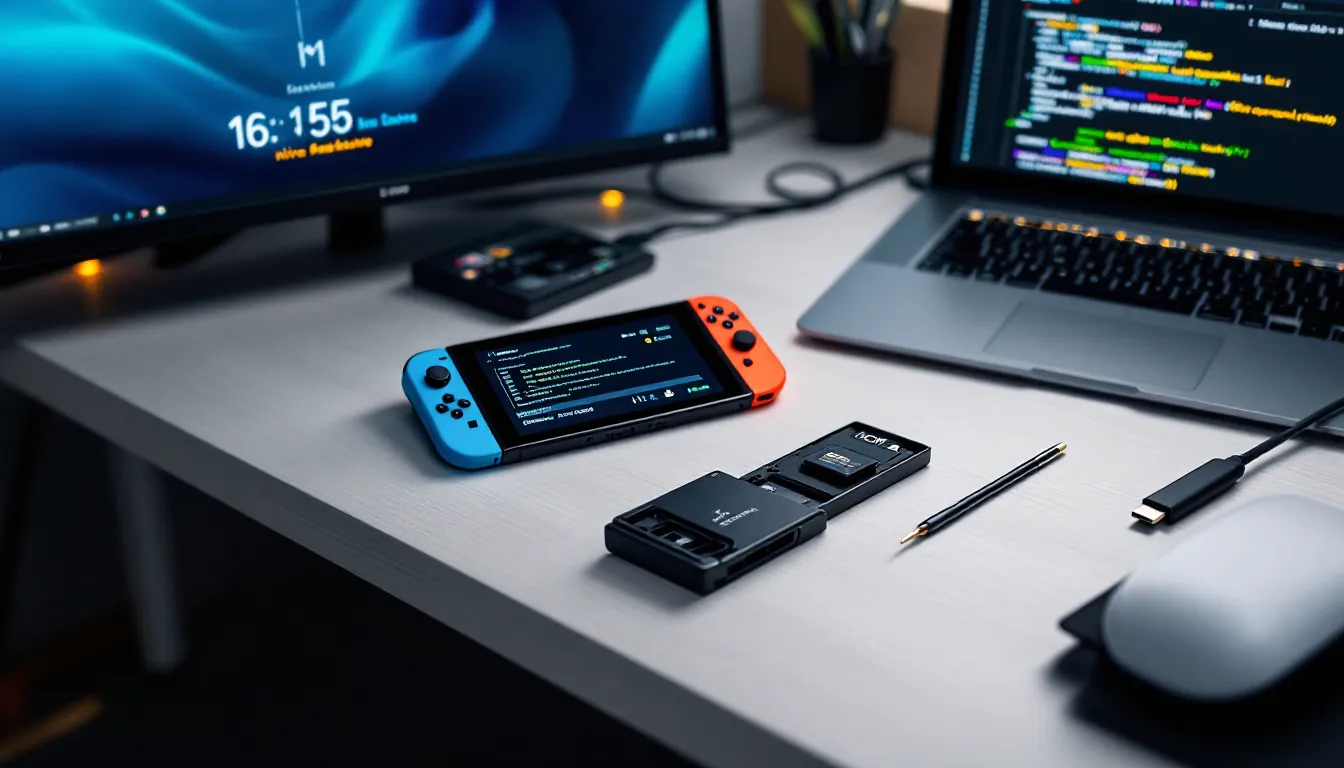
To hack an unpatched Switch, you need a few physical items. First up: an RCM jig. This is a tiny plastic or 3D-printed tool that slides into the right Joy-Con rail and shorts specific pins to force the Switch into recovery mode (RCM). You can buy them online for a few bucks, or if you’re handy, some people just use a bent paperclip or a piece of aluminum foil folded to the right thickness. Just be careful, shorting the wrong pins can damage your console.
You’ll also need a USB-C cable to connect your Switch to a PC, and a way to inject the payload. Most people use a Windows, Mac, or Linux PC for this, but there are also dedicated dongles like the RCMLoader or phone apps (Android only) that can inject payloads without a computer.
Next, grab a high-quality microSD card, at least 64GB, though 128GB or 256GB is better if you plan to load up on emulators and homebrew apps. Speed matters here: look for a card with UHS-I U3 or better (A1 or A2 rating is a bonus). SanDisk and Samsung EVO cards are solid picks. Cheap no-name cards can cause crashes and corruption, so don’t cheap out.
Finally, you’ll want a microSD card reader for your PC so you can set up the card properly before putting it in your Switch.
Core Software: Atmosphère, Hekate, and TegraRcmGUI
Atmosphère is the CFW that powers most Switch homebrew setups in 2026. It’s actively maintained, stable, and supports the latest Switch firmware versions (as of this writing, version 18.0.0 and beyond). Atmosphère doesn’t just let you run homebrew, it also includes sigpatches (signature patches) that allow unsigned code to execute, and it has built-in protections to reduce the risk of bans.
Hekate is a bootloader and toolkit that works hand-in-hand with Atmosphère. When you inject the Hekate payload into RCM, it gives you a menu where you can boot into CFW, manage your emuMMC (more on that later), back up your NAND, and tweak system settings. Hekate is what you’ll use to actually launch Atmosphère every time you want to run homebrew.
TegraRcmGUI (or Rekado on Android) is the PC software that injects the Hekate payload into your Switch while it’s in RCM mode. It’s dead simple: plug in your Switch, run the program, and click a button to send the payload. TegraRcmGUI also shows your Switch’s serial number and can help you verify it’s in RCM mode.
All of these tools are free and open-source. The Switch homebrew scene has largely moved away from paid or closed-source options (like the old SX OS), so there’s no reason to spend money on software. That said, understanding technical gaming tutorials can make the setup process smoother if you’re coming from a non-technical background.
Step-by-Step Guide to Installing Homebrew on Your Switch
Preparing Your microSD Card and Downloading Files
First, format your microSD card to FAT32 or exFAT (FAT32 is recommended for maximum compatibility). If you’re on Windows and the card is larger than 32GB, you’ll need a third-party tool like guiformat since Windows won’t natively format large cards to FAT32.
Next, download the latest versions of Atmosphère and Hekate from their official GitHub pages. You’ll also want the Homebrew Menu (hbmenu) NRO file and the latest sigpatches (search for “Atmosphère sigpatches” on GitHub, these are community-maintained). Extract the contents of the Atmosphère and Hekate archives to the root of your microSD card, merging folders when prompted. It should look something like this: atmosphere/, bootloader/, switch/, and a hekate_ctcaer_x.x.x.bin file.
Create a folder called bootloader/payloads/ if it doesn’t exist, and drop the Atmosphère fusee.bin file in there (Hekate will auto-detect it). Finally, copy the sigpatches into the atmosphere/ folder. Once everything’s on the card, safely eject it and pop it into your powered-off Switch.
Entering RCM Mode and Injecting the Payload
Power off your Switch completely (hold the power button and select Power Options > Turn Off). Slide the RCM jig into the right Joy-Con rail, make sure it’s seated properly so the pins are bridged. Now, hold Volume Up and press the Power button. If done correctly, your Switch will seem to do nothing, the screen stays black. That’s RCM mode.
Plug your Switch into your PC via USB-C. Open TegraRcmGUI (or Rekado on Android). The program should detect your Switch and show “RCM OK” or a similar message. Click the folder icon to browse for the Hekate payload file (the .bin file you downloaded earlier), then hit Inject payload.
Your Switch screen will light up with the Hekate menu, a colorful interface with several options. If you see this, congrats: you’ve successfully booted custom software.
Booting into Custom Firmware for the First Time
Before you do anything else, use Hekate to back up your NAND. This is a complete backup of your Switch’s internal storage, and it’s your safety net if something goes wrong. In the Hekate menu, tap Tools > Backup eMMC > eMMC BOOT0 & BOOT1, then eMMC RAW GPP. This will take 20-30 minutes and create backup files on your microSD card. Do not skip this step. Store these files somewhere safe off the card, external drive, cloud, wherever. If you ever brick your console, this backup can restore it.
Once that’s done, go back to the main Hekate menu and tap Launch > Atmosphère. Your Switch will reboot, and after a few seconds, you should see the normal Switch home screen. But now, you’re running Atmosphère in the background.
To access the Homebrew Menu, hold the R button and launch any game (even a legit one you own). Instead of the game starting, you’ll see the Homebrew Menu, a list of homebrew apps you can run. If you see this, you’re in. Homebrew is live.
Popular Homebrew Applications and What They Do
Emulators: Playing Retro Games on Your Switch
One of the biggest draws of Switch homebrew is emulation. The console’s hardware is more than capable of running everything from 8-bit classics to some sixth-gen systems, and the homebrew emulator scene is thriving.
RetroArch is the heavyweight champion here. It’s a multi-system frontend that supports dozens of emulator cores, NES, SNES, Genesis, Game Boy, GBA, N64, PS1, PSP, and more. Performance varies by system: 16-bit emulation is flawless, N64 is mostly solid with some hiccups in demanding games, and PSP emulation is impressive but not perfect (expect slowdowns in heavy titles). The Switch version of RetroArch supports themes, cheats, shaders, and even netplay for some cores.
Other standalone emulators are worth checking out too. mGBA is a lightweight Game Boy Advance emulator with excellent accuracy. Snes9x is a dedicated SNES emulator that runs beautifully. PPSSPP is the go-to for PSP emulation, and it’s been heavily optimized for Switch. You can find all of these through the Homebrew App Store, a downloadable app that functions like an app store for homebrew software.
Loading ROMs is straightforward: create a folder on your microSD card (like /roms/), organize by system, and point the emulator to that folder. Just remember that downloading ROMs of games you don’t own is legally questionable, even if the games are decades old.
Save Managers and Backup Tools
Save management is another killer feature. Checkpoint is the standard tool for backing up, restoring, and editing save files for both legitimate Switch games and homebrew. It’s useful if you want to move saves between consoles, experiment with different save states, or protect your progress before a risky in-game decision.
JKSV is an alternative with a slightly different interface, some people prefer it over Checkpoint. Both work well.
There’s also EdiZon, a save editor that lets you modify game data directly, think infinite items, max stats, or unlocking content without grinding. It uses cheat code files similar to Action Replay or GameShark, and the community maintains a database of cheats for popular titles. Whether you see this as enhancing your experience or ruining the challenge is up to you, but the option’s there.
Many players exploring various Switch capabilities find save management tools essential for preserving progress across multiple consoles or configurations.
Custom Themes, Overlays, and User Interface Mods
Want to give your Switch a fresh look? NXThemes Installer lets you apply custom themes to the home menu and lock screen. You can find thousands of user-created themes on sites like ThemezerNX, everything from minimalist designs to full-blown artistic overhauls featuring your favorite games or characters. The installation process is simple: download a .nxtheme file, copy it to your SD card, and use NXThemes Installer to apply it.
Tesla is an overlay menu system that runs on top of games and the home screen. By pressing L + DPad Down + Right Stick Click (customizable), you bring up a sleek overlay where you can access tools like the EdiZon overlay (for live cheat toggling), sys-clk (for monitoring or adjusting CPU/GPU clocks), or FPSLocker (to unlock frame rates in supported games).
Speaking of sys-clk, it’s a sysmodule (background service) that lets you overclock or underclock your Switch. This can boost performance in demanding games or extend battery life in lighter ones. Use it cautiously, overclocking generates more heat and can reduce hardware lifespan if pushed too hard.
Players who enjoy experimenting with modded gaming experiences will find the Switch homebrew UI customization scene surprisingly robust and active.
How to Stay Safe and Avoid a Nintendo Ban
Using emuMMC to Separate Homebrew from Online Play
The single most important tool for avoiding a ban is emuMMC (emulated MMC). This feature creates a virtual copy of your Switch’s internal storage (NAND) on your microSD card. When you boot into CFW using emuMMC, everything you do, homebrew apps, save edits, pirated games if you’re going that route, happens on this virtual copy, leaving your actual system NAND completely untouched.
The beauty of emuMMC is that you can boot into stock firmware (without CFW) using your clean system NAND and connect to Nintendo’s servers safely. Your console doesn’t know anything about the homebrew activity happening on the emuMMC because it’s completely isolated.
Setting up emuMMC is done through Hekate. In the main menu, go to emuMMC > Create emuMMC > SD Partition (or SD File, depending on your preference, partition is generally faster). This will take some time as it copies your entire NAND to the SD card. Once it’s done, Hekate will show an emuMMC indicator, and you can choose whether to boot into sysMMC (stock) or emuMMC (CFW) each time you inject the payload.
Golden rule: Never boot into emuMMC and connect to Nintendo’s servers. Keep CFW offline. Keep sysMMC clean and online-safe.
DNS and Network Protection Best Practices
Even with emuMMC, you want extra protection. 90DNS and Exosphere DNS MITM are methods that block your Switch from communicating with Nintendo’s telemetry and ban-check servers. Atmosphère has DNS MITM built in, just enable it in the config files, and it’ll automatically block connections to Nintendo’s servers even if you accidentally try to go online while in CFW.
You should also install Incognito RCM or Exosphere blank prodinfo, which wipes or blanks out your console’s unique certificate data in emuMMC. Without this certificate, Nintendo can’t identify your console even if telemetry data somehow gets through. This is a nuclear option, though, if you blank your prodinfo without backing it up first, you lose the ability to go online with that NAND ever again. That’s fine for emuMMC, but make sure you never do this to sysMMC.
Finally, never use your Nintendo Account on emuMMC. Don’t sign in, don’t link it, don’t even think about it. Nintendo tracks accounts across consoles, and if your account logs in from a banned console, that’s game over for the account too.
Some users prefer to keep a dedicated Switch for homebrew and another for legitimate online play. That’s the safest approach, but if you only have one console, emuMMC with proper DNS blocking and no Nintendo Account usage is the next best thing. If you’re unsure about any step, factory resetting your console can give you a clean slate before attempting homebrew.
Troubleshooting Common Homebrew Issues
Fixing Black Screens and Boot Failures
Black screens are the most common issue when you’re first setting up homebrew, and they’re usually easy to fix. If your Switch shows a black screen after injecting the payload, first make sure you’re actually in RCM mode (the screen should be black before you inject). If you see the Nintendo logo and then a black screen, that’s different, it usually means Atmosphère isn’t finding the files it needs on your SD card.
Pull the SD card out, plug it into your PC, and double-check that the atmosphere/ and bootloader/ folders are in the root directory (not inside another folder). Make sure you have the latest version of Atmosphère and that your sigpatches are up to date and compatible with your current Switch firmware version. Mismatched versions are a leading cause of boot failures.
Another common culprit: corrupted SD cards. Run a card check using H2testw (Windows) or F3 (Mac/Linux) to verify the card isn’t fake or damaged. If you find errors, replace the card.
If Hekate boots fine but Atmosphère crashes, check the atmosphere/crash_reports/ folder on your SD card. These logs can tell you which sysmodule or homebrew app is causing the crash. Disabling sysmodules one by one (by renaming their .flag files in atmosphere/contents/) can help isolate the problem.
Updating Custom Firmware Without Breaking Your Setup
Nintendo releases firmware updates regularly, and when they do, you’ll need to update Atmosphère to match if you want to keep using homebrew. The good news: updating CFW is straightforward.
First, check the Atmosphère GitHub releases page to see if a new version is available that supports the latest Switch firmware. If it is, download the new release and extract it to your SD card, overwriting the old files. Do the same for Hekate if there’s a new version.
Next, update your sigpatches. These need to match both your Atmosphère version and your firmware version, so grab the latest community sigpatch pack and copy it over as well.
If you’re on sysMMC and want to update your Switch firmware, do not use the system updater while in CFW. Instead, download the firmware files manually (search for “Daybreak firmware files” or use Daybreak, the official Atmosphère system updater). Daybreak lets you update your firmware safely without burning fuses (a hardware anti-downgrade mechanism) and without risking accidental telemetry uploads.
For emuMMC, you can update firmware more freely since it’s isolated. Just use Daybreak and point it to the firmware files on your SD card. Never update emuMMC using Nintendo’s servers, that defeats the purpose of keeping it offline.
Some homebrew apps may also need updates. The Homebrew App Store makes this easy, just launch it, and it’ll show you which apps have new versions available. Exploring the latest Switch game releases and features can also give you a sense of which firmware versions bring the most benefit.
The Future of Nintendo Switch Homebrew in 2026 and Beyond
As of 2026, the Switch homebrew scene is mature, stable, and shows no signs of slowing down. Atmosphère continues to receive regular updates to support new firmware versions, usually within days of Nintendo’s releases. The core tools, Hekate, Checkpoint, RetroArch, are polished and reliable. For unpatched V1 Switch owners, the homebrew experience is as plug-and-play as it’s ever been.
But the elephant in the room is Nintendo’s next console. Rumors of a “Switch 2” or successor have been swirling for a couple of years now, and if Nintendo launches new hardware, the homebrew community will have to start from scratch. Depending on the architecture and security measures Nintendo implements, it could be months or even years before the new system is cracked. The Switch 1’s Tegra X1 bootrom exploit was a lucky break, a hardware flaw that can’t be patched. Nintendo won’t make that mistake twice.
That said, the original Switch will remain relevant for a long time. Nintendo’s track record shows they support their consoles well past new hardware launches (the 3DS got games years after the Switch dropped), and the homebrew community has a way of keeping old hardware alive indefinitely. Even if official support dries up, modders will continue refining CFW, adding features, and porting new emulators and apps.
There’s also growing interest in Switch game modding. Games like Breath of the Wild, Smash Ultimate, and Animal Crossing have active modding scenes creating custom content, new levels, characters, skins, and even full romhacks. As tools improve and the community grows, we’ll likely see more ambitious projects.
One wild card: legal pressure. Nintendo has been increasingly aggressive with DMCA takedowns and lawsuits targeting emulator developers, ROM sites, and even homebrew tool creators. While the core Atmosphère project is open-source and legally defensible (it doesn’t contain Nintendo code), the cat-and-mouse game between Nintendo’s legal team and the homebrew scene will shape how accessible these tools remain in the coming years.
For now, though, if you’ve got an unpatched Switch and the patience to follow the setup process, there’s never been a better time to jump into homebrew. The tools are mature, the community is active, and the possibilities are nearly endless.
Conclusion
Switch homebrew isn’t for everyone, but if you’ve made it this far, you’re probably the kind of person who wants more control over the hardware you own. Whether you’re here for emulators, save management, custom themes, or just the challenge of unlocking what Nintendo locked down, homebrew transforms the Switch from a tightly controlled console into a versatile platform limited only by your curiosity.
Yes, there are risks, bans, voided warranties, the occasional brick if you’re careless. But with emuMMC, proper DNS blocking, and a bit of common sense, those risks drop to manageable levels. The homebrew community has spent years refining these tools to be as safe and user-friendly as possible.
If you’ve got an unpatched V1 Switch, grab an RCM jig and a good microSD card, and give it a shot. Back up your NAND, follow the steps carefully, and don’t rush. Once you’re in, you’ll wonder how you ever lived without the Homebrew Menu. And if you’re still on the fence, that’s fine too, homebrew will still be here whenever you’re ready.